OpenWater Portal Instructions
Set up Your Account
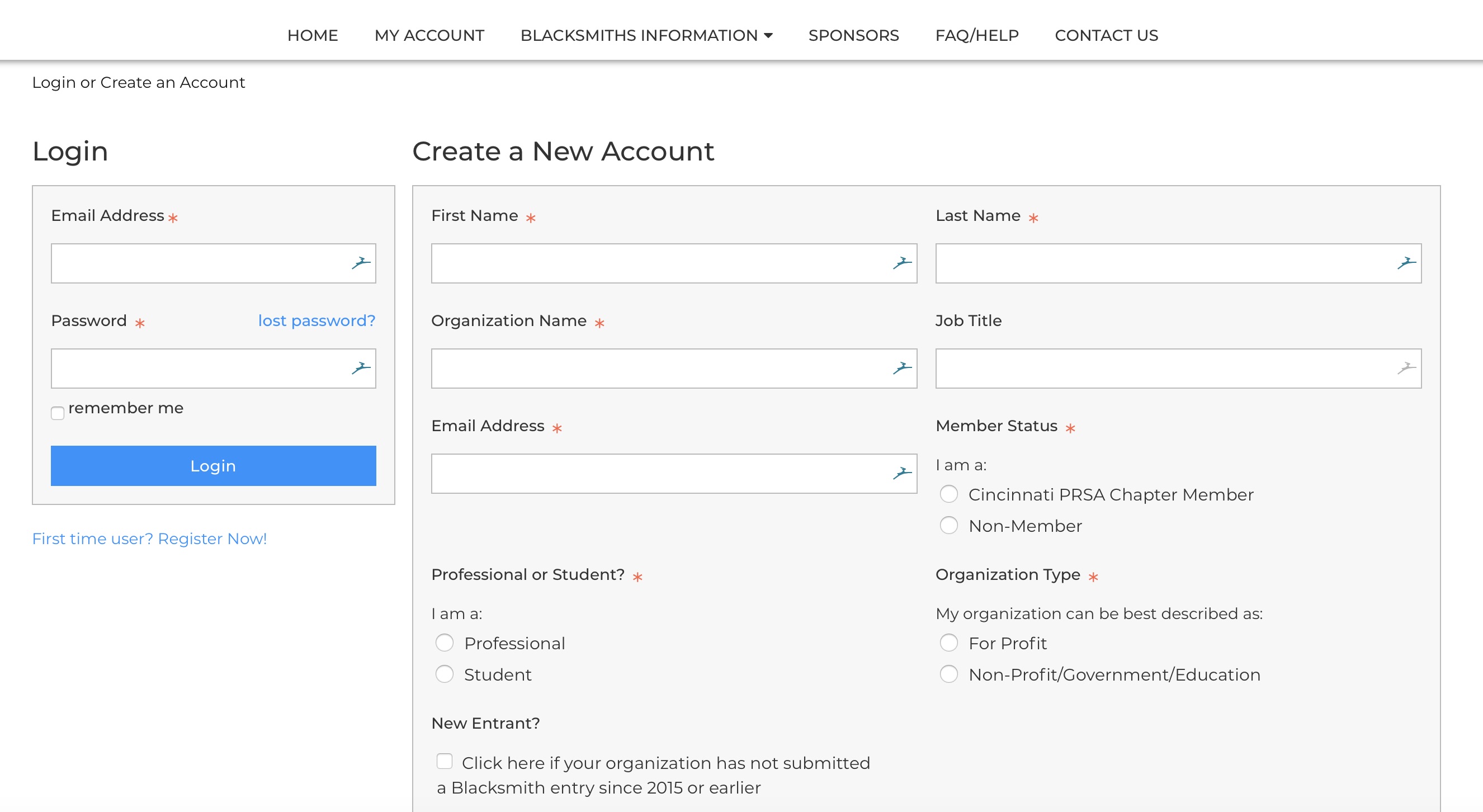
Note: If you set up an account to apply for a Blacksmith Award since 2019, your account is active. You should login with those credentials and skip to step 2. If you don't remember the password to log in, click 'lost password' in the login box to begin the password reset process.
To set up your account, when you come to our home page, click on the 'First time user? Register Now!' link under the login window on the left side of the page. You'll be directed to a page where you can fill in your information. Fields with a red asterisk are required. As part of the process, you'll be able to select a customized password.
Login
Your email is your username, and the password you created is your password. If you don't remember your password, click the 'lost password' link, and you'll be directed through the password reset process.
Create Your Entry
To begin an entry, click on the home link either on the left-hand or top menu, then click on the 'start your entry' button. If you have existing entries, you can also begin a new entry from the 'My Applications' link or copy from an existing entry.
There are three tabs you'll need to complete to finalize your entry, and you can move from one section of the entry to another by using the buttons on the bottom of the form or by using the breadcrumbs on the top of each page.
Contact Information
The information in this section will be pre-filled with the information you provided when you set up your account. Confirm this information and click the ‘save and next’ button to move to the next section. Note that if the contact for any specific entry is different than the account owner, you are able to edit the information in this tab.
Entry Information & Materials
Here, you’ll be able to enter your entry title, select the entry category, and select the client the entry is being submitted on behalf of (if applicable). This is also where you can upload your entry summary, and no more than 10 supporting materials. You’ll also be able to provide 3 links to websites or videos.
Your entry summary must be in PDF format, and supporting materials must be in PDF, JPG or PNG formats. Each file must be 25 MB or smaller. If you are sharing videos as part of your entry, it is suggested to share a link to the video, vs. uploading a file.
Entry Description
This section is where you’ll add information that can be used at the Chapter Banquet should you be recognized as a finalist. This includes a 50-word description of your entry, an entry fact and an entry image. Once you have completed your application, you can click the ‘add to cart’ button at the bottom of this section, or you can save for later.
Note that if you save your entry to add to the cart later, you’ll need to come back to this section to do that. Also note that if you attempt to add an entry to the cart and there is required information that has not been entered/uploaded, clicking the 'Add to Cart' button will direct you to the incomplete area, which will be highlighted in red.
Review Your Entries
Once your entries are complete and have been added to your cart, you’ll see basic information about each entry, including category, cost, and pricing details. The details will include the pricing category used based on your member status and organization type and any discounts or fees applied (i.e., early bird discount and late fees). You’ll also see a total cost for all entries below.
Please ensure you review your entries at this point and that you are ready to submit without additional changes (you can click the ‘select’ button next to each entry to review and edit, or the ‘Print All Applications’ button at the bottom to have all your entries presented in a PDF file for your records).
Please note that if you want to pay for certain entries at this time, but pay for others in a separate transaction, click ‘remove’ next to the entries you want to pay for later. The entry will be moved to the ‘in progress’ section, and you can move back to the cart once your initial payment is complete.
Click the ‘Checkout’ button to proceed.Submit and Pay
Here, you can pay for and submit your entries. You have two options for payment: PayPal Express Checkout (for online payments by credit card or PayPal account) or by check. Choose the option you prefer, and then click the ‘Process’ button.
When you click the process button, you’ll receive a warning noting that doing so will submit your application, and you’ll be unable to edit it afterwards. Clicking OK will direct you to either the PayPal site to complete your online payment or display an invoice if you choose to pay by check.
- If paying by check, you will also receive a copy of your invoice by email, and we request that you send a check within 2 weeks.
- If paying online, once you submit your payment through PayPal, you will receive a receipt directly from PayPal.
If you have additional questions about using our OpenWater portal, please email blacksmithawards@cincinnatiprsa.org.